Remove Subtitles from Image While Keeping Scene Detail
Use a reliable remove subtitles from image workflow for still frames, social clips, and thumbnails where subtitle bars or hardcoded captions block key visual content.
Supports JPG, PNG, WEBP
Before / After Comparison
Move the slider to compare before and after. Hover and drag horizontally to check edge quality.
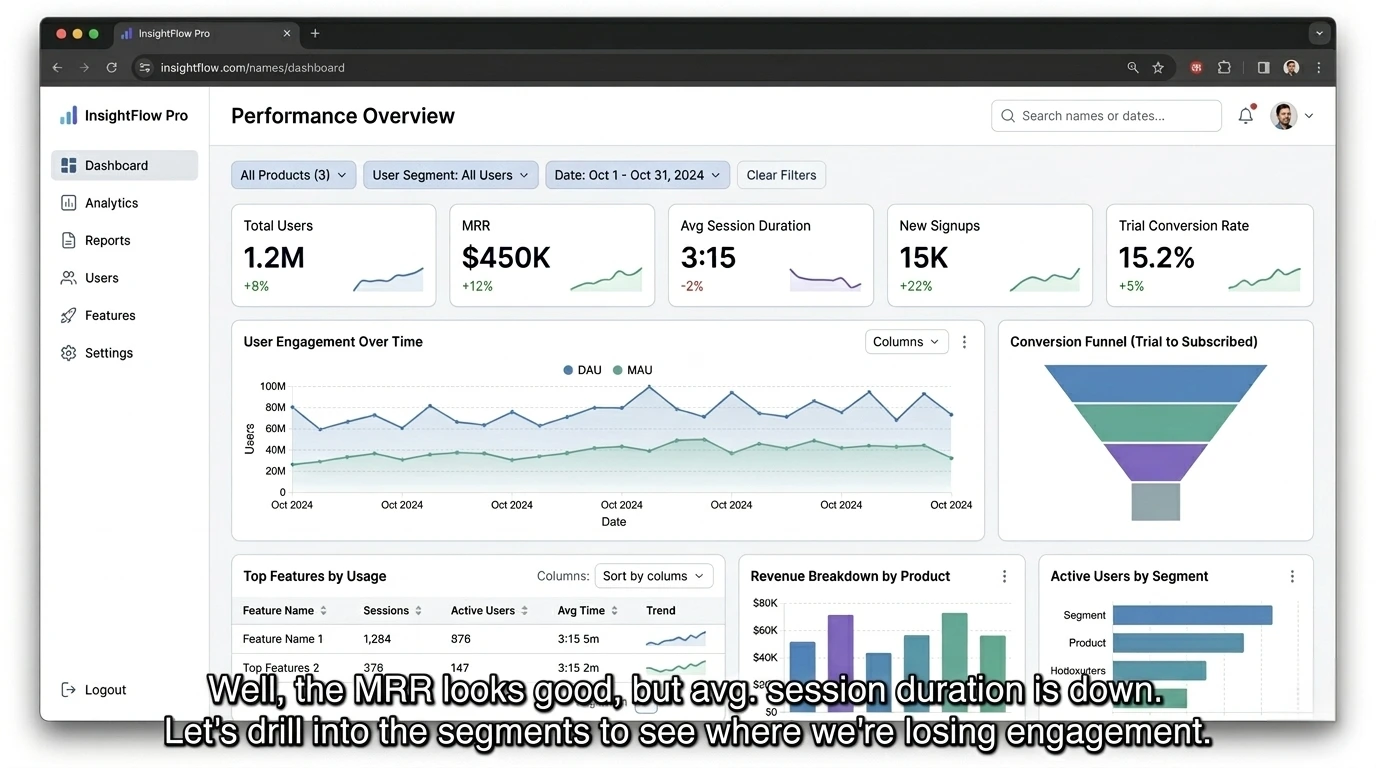
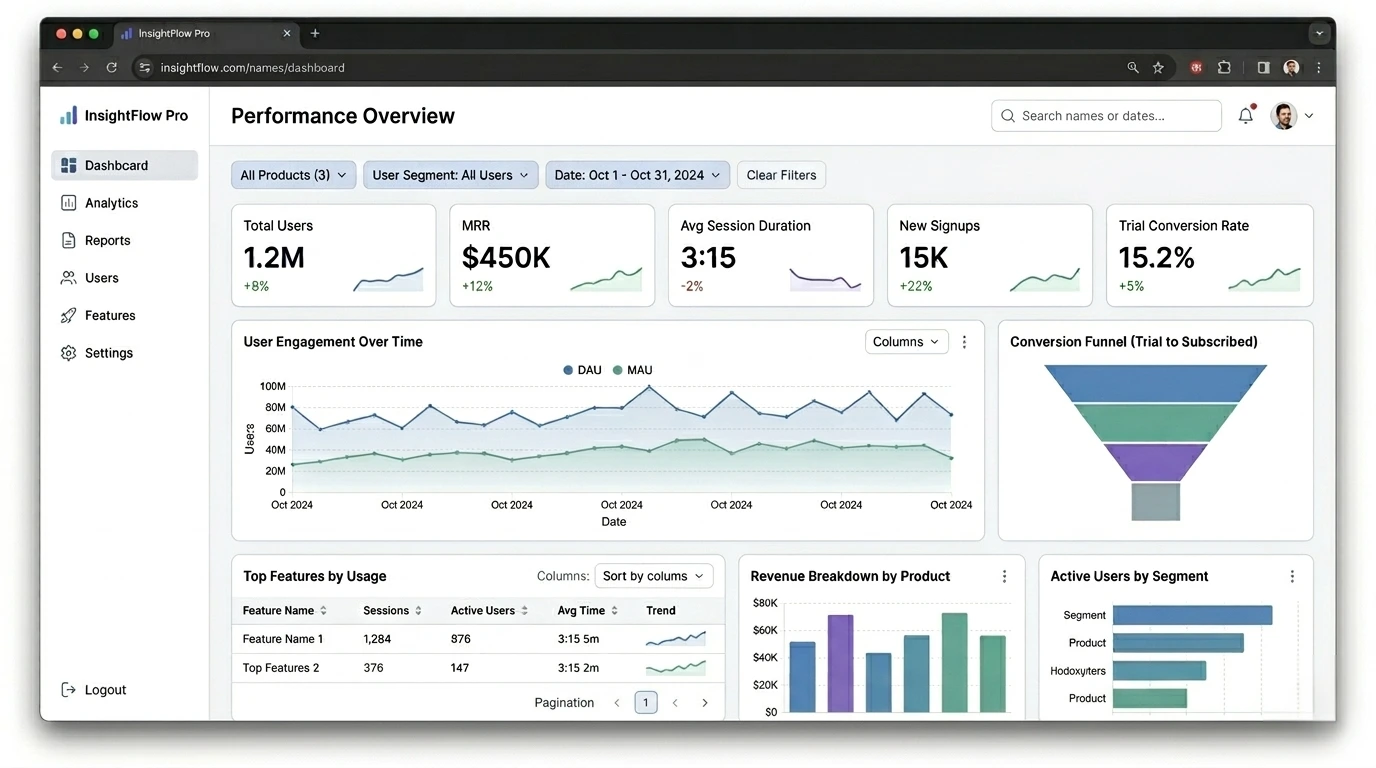
How To Remove Subtitles From Image Without Flat Blur Bands
The reason people search for remove subtitles from image tools is simple: subtitle overlays often block exactly the part of the frame they need to reuse. It can be a speaker gesture, product detail, lower-third branding, or cinematic composition near the bottom edge. Cropping is often not acceptable because it changes framing and aspect ratio. Re-exporting from source footage is often impossible when the only asset available is a still image. A practical remove subtitles from image workflow must therefore do two things well: detect the subtitle area quickly and rebuild the hidden background in a way that looks natural. This page is built around that real production need. You upload one frame, run automatic detection, check the mask, and apply cleanup. If a line is partially detected, refine it with brush and eraser in seconds and re-apply.
In subtitle-heavy workflows, consistency matters more than one perfect result. Content teams process many stills: promo frames, social thumbnails, blog headers, and recap images. Manual cleanup in traditional editors can work, but the speed drops sharply when you do the same task all day. The subtitle cleanup process here keeps the sequence repeatable: detect, verify, refine, apply, export. That consistency is important because subtitle overlays vary by platform, font, language, and compression artifacts. Some are hard white text with drop shadows, some are semi-transparent bars, and some are anti-aliased captions fused into noisy backgrounds. A one-click-only tool fails on edge cases. A fully manual workflow is too slow. The hybrid approach is the practical middle ground.
A common failure pattern is the soft gray strip left behind after subtitle removal. This happens when masks are too broad or when cleanup ignores local texture direction. If the frame includes moving backgrounds, skin tones, cloth folds, or gradient lighting, rough inpainting looks obvious. To remove subtitles from image assets cleanly, mask precision is the core variable. Start with automatic detection to capture the subtitle baseline. Then zoom in and inspect edges around descenders, punctuation, and drop-shadow glow. Use eraser to remove overreach and brush to recover missed letters. Apply cleanup in controlled passes. This method usually gives better texture continuity than trying to delete every subtitle line in one large mask.
Another advantage of this subtitle cleanup workflow is that it preserves your original composition for downstream tasks. Once subtitles are gone, the same frame can be used for localization, redesign, callout overlays, or editorial thumbnails. Teams often need multiple variants from one frame, and doing subtitle cleanup once at the start saves repeated retouching later. You can also keep the same session open to test a second pass if the first output leaves minor artifacts. This is much faster than exporting to another tool, rebuilding layers, and manually re-blending every region.
Language and script diversity also matter. Subtitle overlays are not only English lowercase text. You will see CJK subtitles, bilingual lines, stylized karaoke text, and heavy outline effects in entertainment content. A useful subtitle cleanup setup should tolerate these variations without forcing you to redesign the process per language. Automatic detection gives a solid first layer, but manual mask controls remain essential for hard font effects, glow halos, and overlapping UI elements. With this model, you can handle multilingual subtitle cleanup using one workflow and one interface.
For creators and marketers, subtitle cleanup work is often part of broader visual reuse: repurposing video frames into ads, blog covers, and social graphics. In those contexts, quality defects are easy to spot because audiences view images quickly and judge instantly. The cleanup must feel invisible. The best way to get there is straightforward: upload frame, detect subtitle region, refine mask, apply cleanup, compare before/after, export. With practice, this becomes a fast routine rather than a design bottleneck.
If you routinely work with still frames and hardcoded caption overlays, this remove subtitles from image page gives you a practical path to cleaner visuals without retaking source footage. Start with one frame now, run the automatic pass, and refine only what is necessary. You will get a reusable clean base that supports localization, branding updates, and new creative output with far less manual effort.
More Cleanup Tools
Remove Logo from Image
Clean corner logos, brand badges, and embedded marks with auto detection plus refine.
AI Text Remover
Automatic text detection + manual refine in one editor session.
Erase Text from Image
One workflow for erase, delete, and remove text intent variants.
Remove Watermark
Remove logo-like overlays and transparent marks with cleanup controls.
Remove Object
Paint a custom mask to remove people, products, or distracting elements.
FAQ
Can I remove subtitles from image frames with noisy backgrounds?
Yes. Use automatic detection first, then refine mask edges around noisy zones before applying cleanup.
What if subtitle text uses heavy outlines or glow?
Paint slightly beyond the glow edge with brush, then use eraser to trim overreach for better reconstruction.
Is cropping required to remove subtitle bars?
No. The workflow is built to keep your original framing so you can reuse the full image composition.
Does this work for non-English subtitles?
Yes. The cleanup workflow can handle different subtitle scripts, and manual mask tools cover hard font styles.
Can I process multiple still images from one video?
Yes. You can apply the same workflow repeatedly: upload frame, detect subtitle area, refine, apply, and export.